
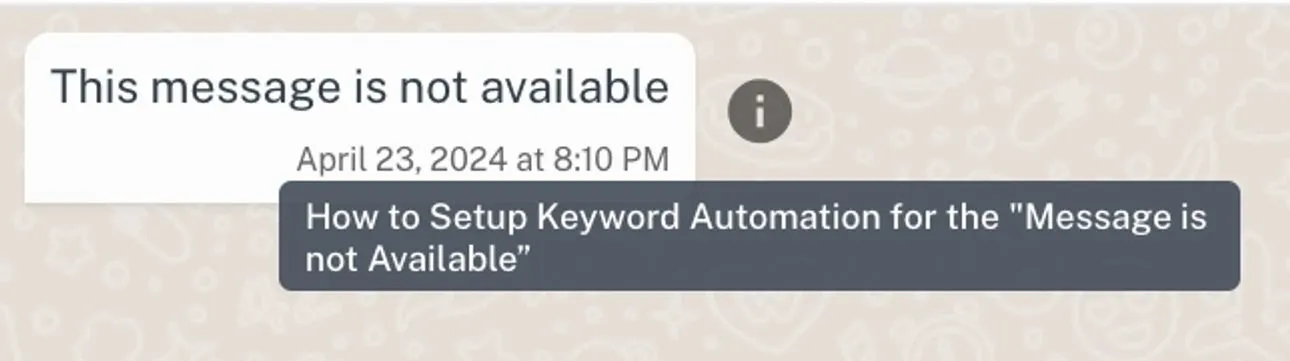
Fixing the 'This message is not available' Error for Keyword Reply
!Image Sometimes messages show up as "This message is not available", preventing your keyword reply from working properly. In this guide, we'll show you how to fix this common issu…
Intro
Sometimes messages show up as "This message is not available", preventing your keyword reply from working properly. In this guide, we'll show you how to fix this common issue and get your keyword replies working smoothly again.
What Can You Do?
You can combat this by setting a keyword reply for such messages to let customers know that you are not able to view the message. They can ask the customer to send it again or send any other response.
Steps
Here's how to set up an auto-response for unavailable messages:
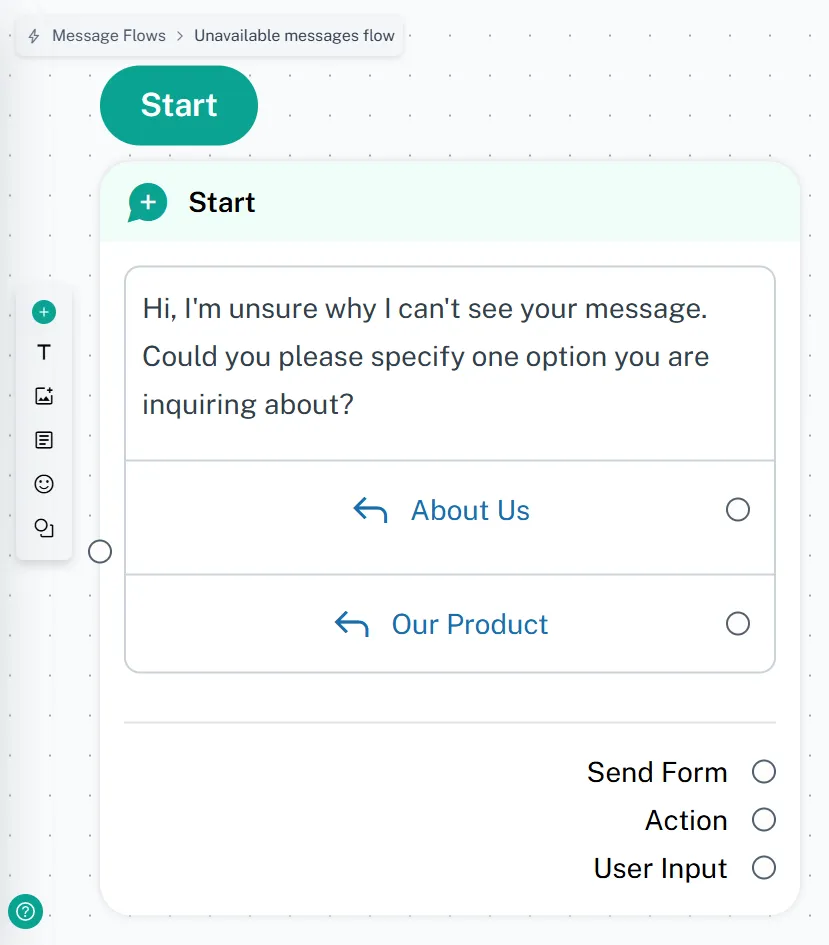
- Prepare a message flow that asks the customer to resend their message or provide an alternative response. Example:
-
Navigate to "Automation" > "Keyword Reply" from the left sidebar
-
Click [Create] in the top-right corner
-
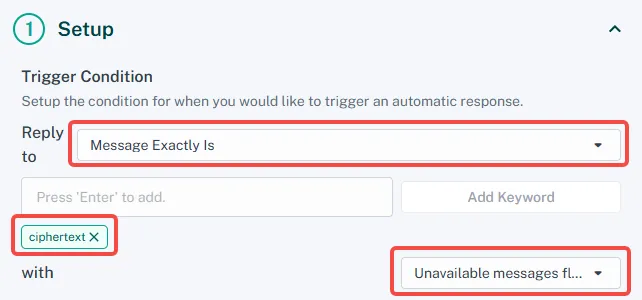
Set condition to [Message Exactly Is] and enter "ciphertext" as the keyword
-
Select the message flow you created in step 1
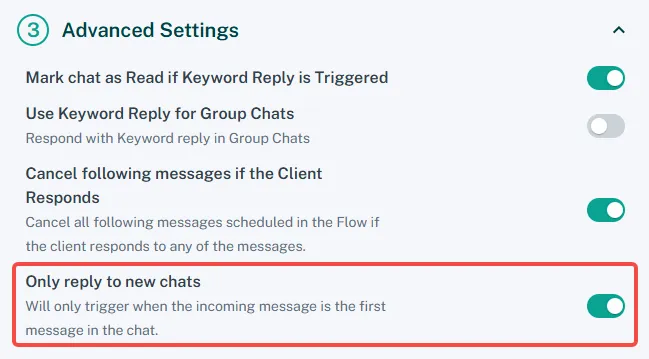
- Enable [Only Reply to New Message] in Advanced Settings to prevent duplicate responses
- Click [Save] to finish setup.