
How to Delete Tags?
Follow these steps to delete tags in your account: 1.1 Go to the Contacts page in your account. !Image 1.2 Locate and click on the three dots (usually found at the top-right corner…
Follow these steps to delete tags in your account:
Step 1: Navigate to the Contacts Page
1.1 Go to the Contacts page in your account.
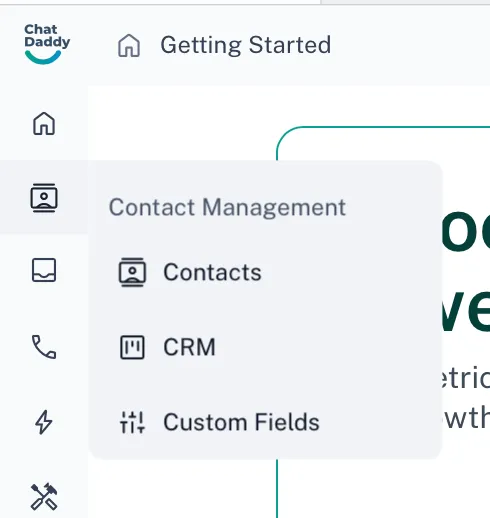
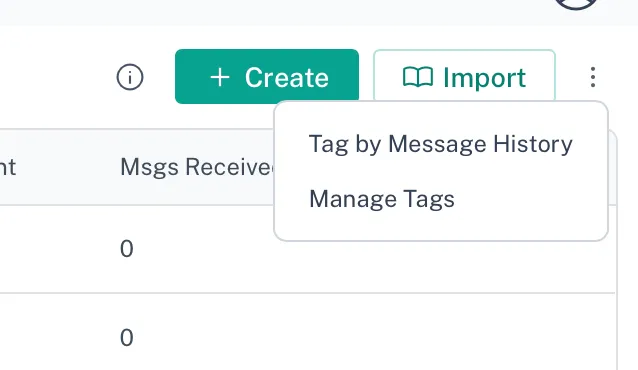
1.2 Locate and click on the three dots (usually found at the top-right corner).
1.3 From the dropdown menu, select Manage Tags.
Step 2: View and Select Tags to Delete
2.1 A list of all your tags will appear on this page.
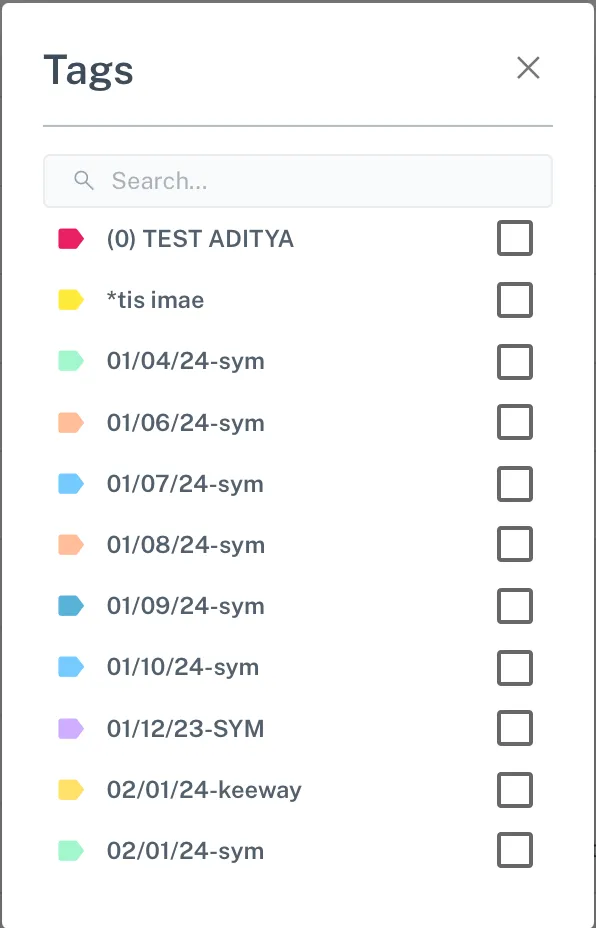
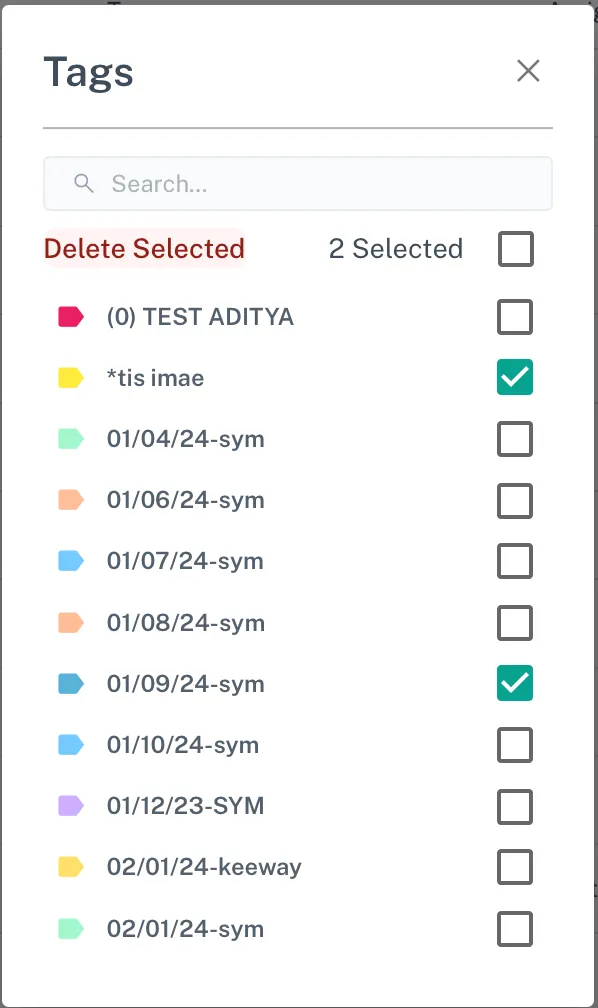
2.2 Find the tags you want to delete and select them by clicking the corresponding checkbox.
Step 3: Delete the Selected Tags
-
Once you've selected your tags, a Delete Selected button will appear at the top of the page.
-
Click the Delete Selected button.
-
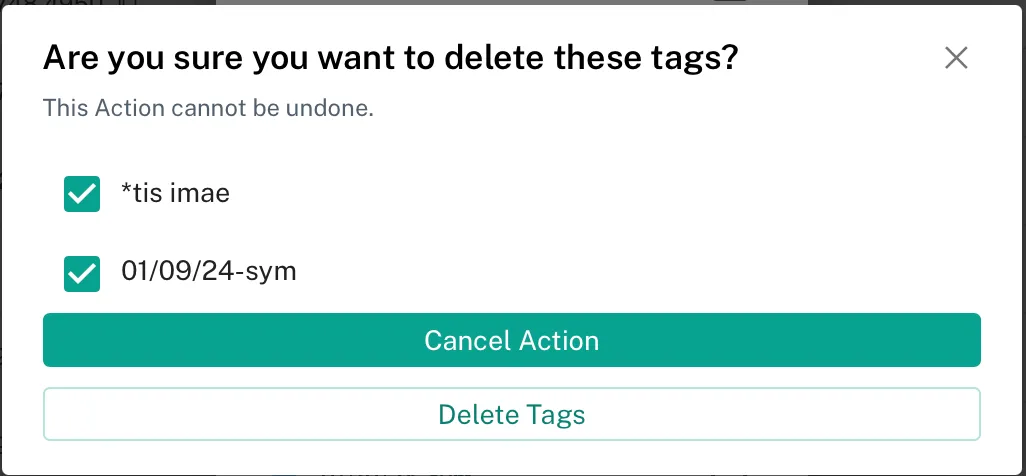
A confirmation prompt will appear. Click Confirm to permanently delete the selected tags.
That's it! Your tags will now be deleted.
🚨 Note: **Please Note that tags once deleted will be lost forever. **