
How to Use the Merge Contacts Feature in ChatDaddy
ChatDaddy provides a built-in Merge Contacts feature that helps you automatically detect and combine duplicate contacts to keep your database clean and organized. Follow the steps…
ChatDaddy provides a built-in Merge Contacts feature that helps you automatically detect and combine duplicate contacts to keep your database clean and organized. Follow the steps below:
📌 Step-by-Step Instructions
1. Go to Contacts
Navigate to the Contacts section in your ChatDaddy.
2. Import Contacts from a CSV File
Upload your contact list by importing a CSV file.
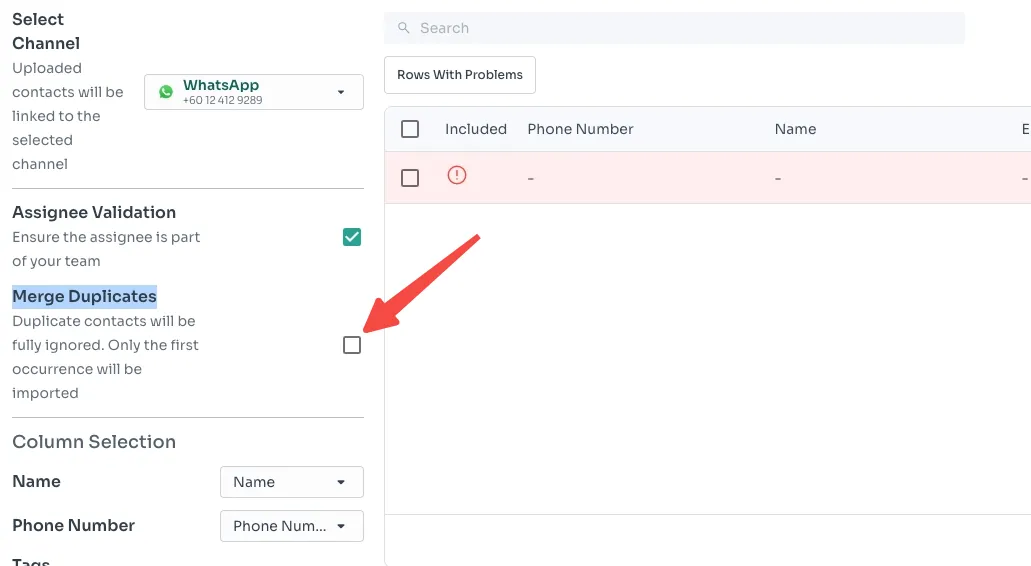
3. Select “Merge Duplicates”
After importing, ticket the box on Merge Duplicates.
4. ChatDaddy will automatically process your contacts
The system will:
-
Scan your entire contact list
-
Detect duplicates based on phone number or name
5. Review & Confirm
ChatDaddy will show suggested merges. Review the results and confirm to complete the merge.
Your contacts are now clean, organized, and free of duplicates! 🚀