
Messages Template Status (WABA)
Templates can have the following statuses. - In-Review: Indicates that the template is still under review. Review can take up to 24 hours. - Rejected: The template has been rejecte…
Templates can have the following statuses.
-
In-Review: Indicates that the template is still under review. Review can take up to 24 hours.
-
Rejected: The template has been rejected during our review process or violates one or more of our policies.
-
Active - Quality pending: The message template has yet to receive quality feedback from customers. Message templates with this status can be sent to customers.
-
Active - High Quality: The template has received little to no negative customer feedback. Message templates with this status can be sent to customers.
-
Active - Medium Quality: The template has received negative feedback from multiple customers but may soon become paused or disabled. Message templates with this status can be sent to customers.
-
Active - Low Quality: The template has received negative feedback from multiple customers. Message templates with this status can be sent to customers but are in danger of being paused or disabled soon, so we recommend that you address the issues that customers are reporting.
-
Paused: The template has been paused due to recurring negative feedback from customers. Message templates with this status cannot be sent to customers.
-
Disabled: The template has been disabled due to recurring negative feedback from customers. Message templates with this status cannot be sent to customers.
-
Appeal Requested: Indicates that an appeal has been requested. See Appeals. The appeal will be reviewed and a decision made within 24 hours.
You can view a template's status by going to WhatsApp Manager > Overview, mousing over the suitcase icon (Account tools) and clicking Message templates. If you have multiple WhatsApp Business Accounts, select the account whose template statuses you want to view from the list of accounts in the dropdown menu in the top-right corner.
Message Sending Limits (WABA)
Business phone numbers with a connected status and approved display name can initiate conversations with the following number of unique customers in a rolling 24-hour period:
-
1K business-initiated conversations
-
10K business-initiated conversations
-
100K business-initiated conversations
-
An unlimited number of business-initiated conversations
This amount starts at 1K unique customers and scales automatically based on phone number status, phone number quality rating, and how often you initiate conversations with unique customers.
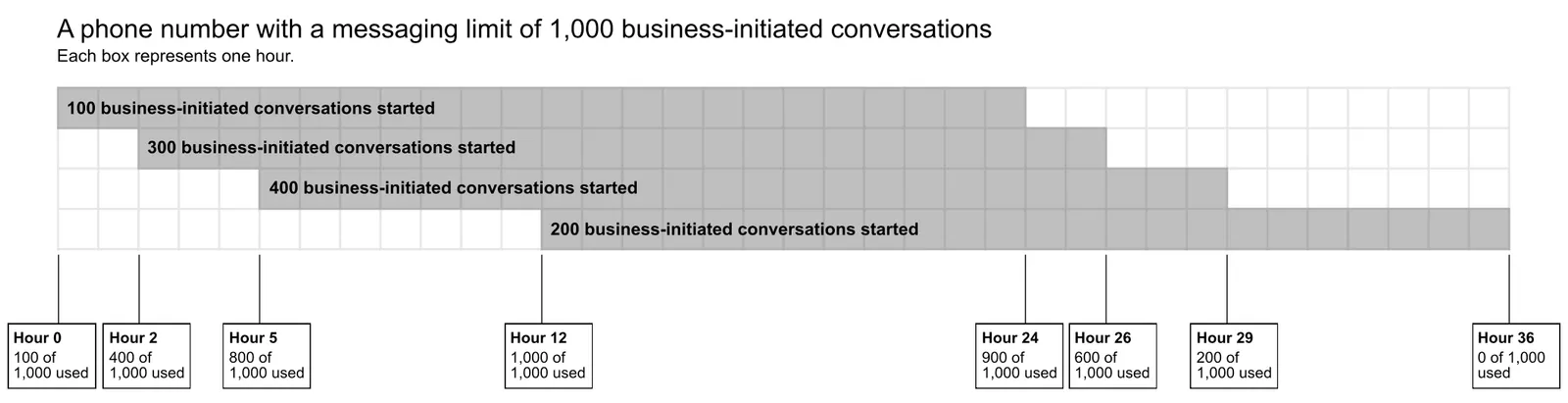
How to Increase Your Message Limit
Each time you initiate a new conversation with a unique customer, WhatsApp will determine if your limit should be increased. This determination is based on the following criteria:
-
Your phone number status is Connected
-
Your phone number quality rating is Medium or High
-
In the last 7 days, you have initiated X or more conversations with unique customers, where X is your current messaging limit divided by 2
💡 Note: If you meet all conditions, WhatsApp will increase your messaging limit by one level in 24 hours.
FAQ
How to check your message limit
- You can check your current messaging limits in the WhatsApp Manager > Overview Dashboard > Insights tab. The panel depicted below will only show your current limit if your messaging limit has increased from the default limit of 250.
How to maintain a high-quality message template?
-
Make sure messages follow WhatsApp's Business Policy and Commerce Policy.
-
Only send messages to users who have opted into receiving messages from your business.
-
Make the messages highly personalized and useful to users. Avoid sending open-ended welcome or introductory messages.
-
Be mindful of messaging frequency; avoid sending customers too many messages a day. Be thoughtful of informational messages, optimizing for content and length.
Why is my message limit being decreased?
- Each time you initiate a new conversation with a unique customer we will check your phone number quality rating. If the rating has been flagged for the last 7 days, we will immediately decrease your messaging limit by one level.