
Alternative Way: View Recipients
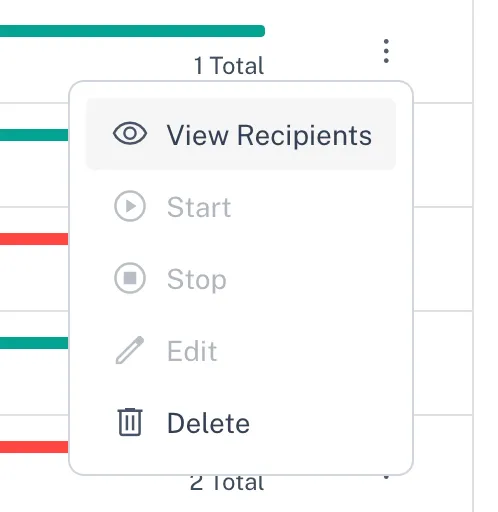
- Click on the three-dot menu next to the broadcast you want to view. - Select View Recipients from the dropdown menu. !Image In the detailed view, you’ll see a list of contacts wh…
-
Click on the three-dot menu next to the broadcast you want to view.
-
Select View Recipients from the dropdown menu.
4. Select Contacts for Export
In the detailed view, you’ll see a list of contacts who received the broadcast. You have two options:
- Export All Contacts
- Leave all filters blank and select all contacts.
- Filter and Export Specific Contacts
-
Use the filter options to narrow down contacts based on their delivery status (e.g., Delivered, Failed).
-
Tick the checkboxes next to the specific contacts you want to include.

5. Export Selected Contacts
-
Once you’ve selected your contacts, the Export button will appear.
-
Click Export to download the contact details as a CSV file.
By following these steps, you can efficiently export all or specific broadcast contacts for further analysis.