
Alternative Way: View Recipients
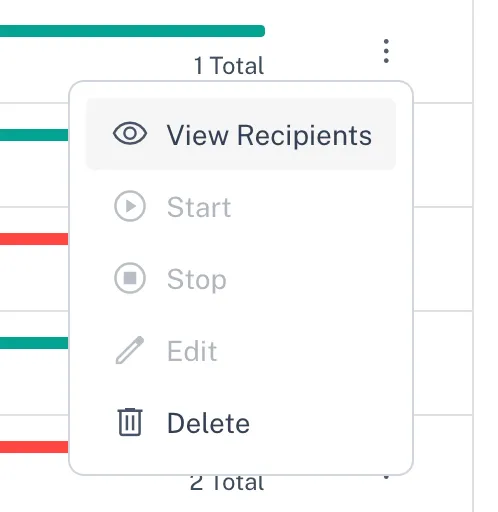
1. Click on the three-dot menu next to the broadcast you want to view. 1. Select View Recipients from the dropdown menu. !Image 1. In the detailed view, you’ll see a list of contac…
-
Click on the three-dot menu next to the broadcast you want to view.
-
Select View Recipients from the dropdown menu.
3. Select Contacts for Tagging
-
In the detailed view, you’ll see a list of contacts included in the broadcast.
-
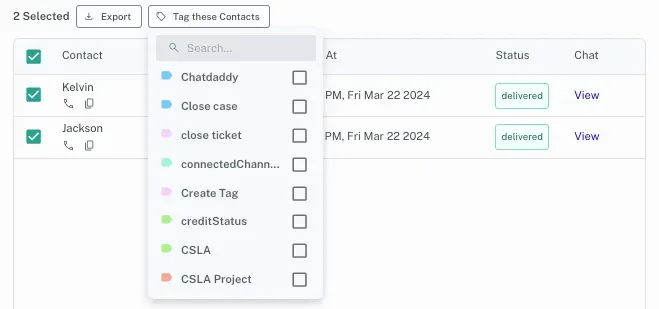
Select the contacts you want to tag by ticking their checkboxes.
4. Apply the Tag
-
Once you’ve selected the contacts, locate the Tag these contacts function at the top of the contact list.
-
Use this function to assign the desired tag to your chosen contacts.
By following these steps, you can quickly tag multiple contacts, making it easier to organize your audience for future broadcasts and campaigns.