
How to enable Push Notifications on Browser?
- Open the ChatDaddy app. - Look for "Settings" and “Notifications” section within the app. - You'll see a list of different sections within the app that can send notifications. -…
Access Notification Settings
-
Open the ChatDaddy app.
-
Look for "Settings" and “Notifications” section within the app.
Manage Section Notifications
-
You'll see a list of different sections within the app that can send notifications.
-
Each section have its own toggle or settings to enable/disable notifications or customize their behavior.
-
The app allows selecting the delivery method for notifications, you'll see options like "Email" or "Push.”
Enable Notifications (if applicable)
-
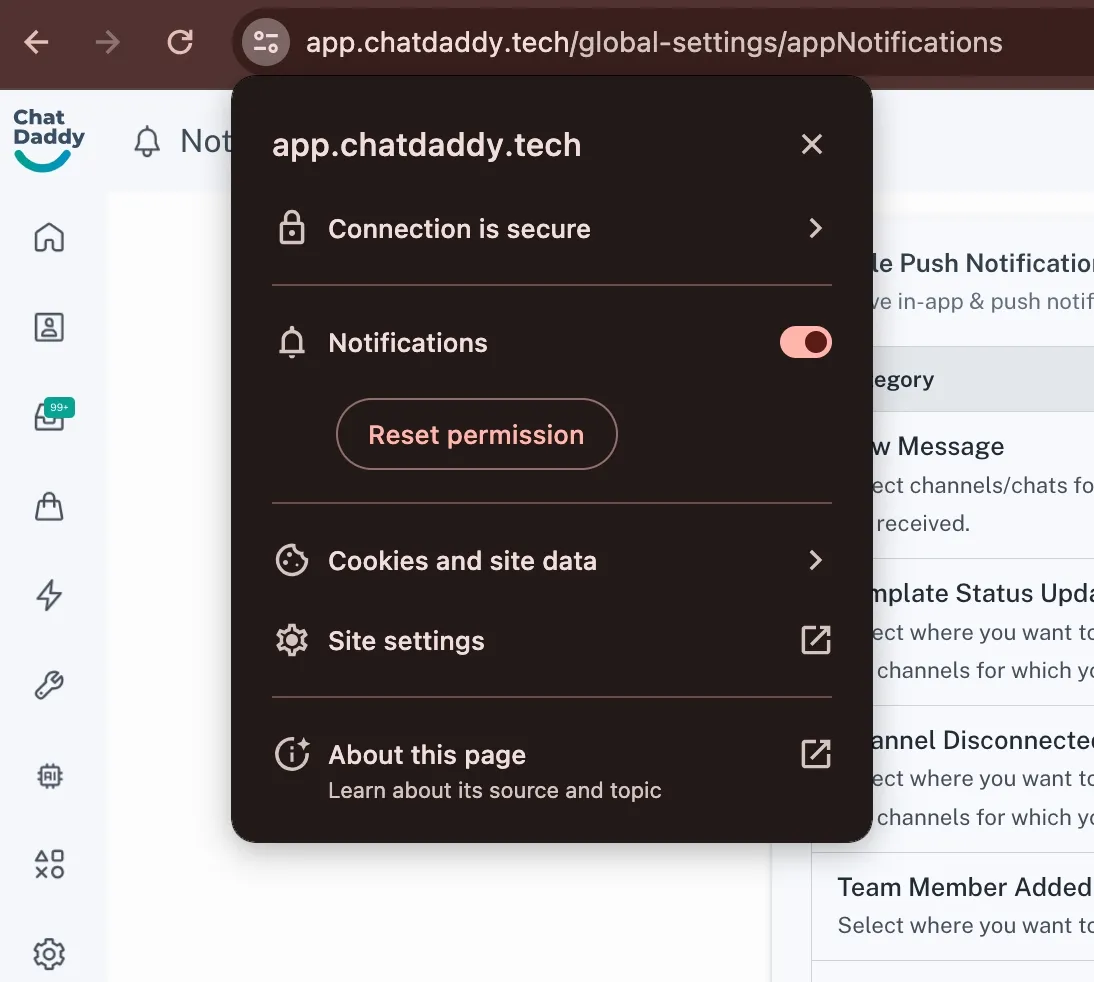
Enabling notifications involve granting permission through the device's notification settings. In this case, you might see a prompt to "Allow Notifications" when you try to enable them.
-
If you encounter this prompt, tap on "Allow" to grant the app permission to send notifications for that section.
-
Or you can click on the site settings menu to grant the app permission.
-
Customize Notification Preferences (Optional)
-
Some sections offer options to further personalize notifications.
-
Explore the notification settings within the specific section for these customization options.
❗ Note: **Note: **To enable notification for desktop, you also need to enable the notification in your browser and device.
Use Case
-
Choose email or push notifications for different app sections and receive updates on what matters to you.
-
Manage notification settings to receive alerts for important updates and silence the ones you don't need.