
How to use the Update Ticket node
!Image Step 1: Setup your message flow and navigate to the node where you want to update a ticket Step 2: Click on “Choose Next Step” and select “Update Ticket” Step 3: Select whic…
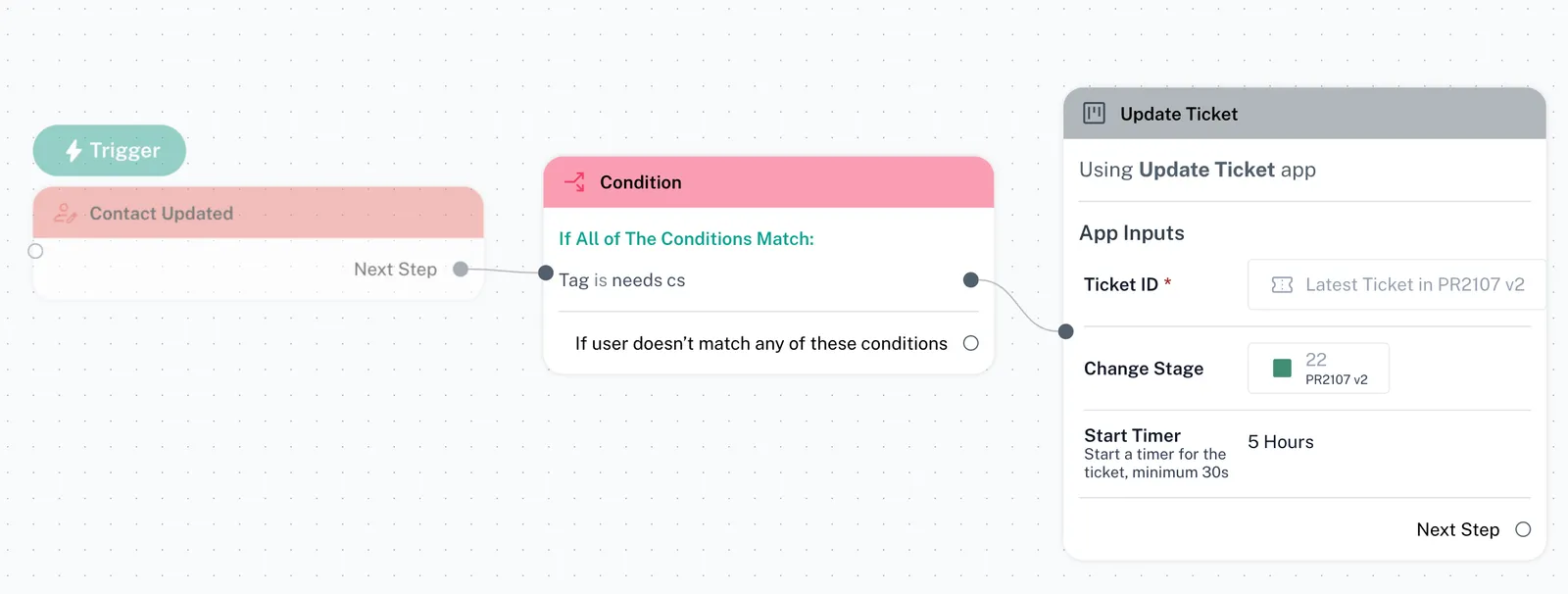
Step 1: Setup your message flow and navigate to the node where you want to update a ticket
Step 2: Click on “Choose Next Step” and select “Update Ticket”
❗ Note: Update Ticket node can be used in after buttons, conditions or triggers
Step 3: Select which ticket you want to update. You can choose the latest ticket in any CRM board, or manually select a particular ticket
Step 4: Select the updated CRM board and stage for your new ticket
❗ Note: The CRM board and stages should already be created before this step. Please click here to learn how
Step 5(Optional): Set a timer for the ticket. This indicates how much time your teammate has to respond to/close the ticket. Leave empty if you don’t want to set a timer