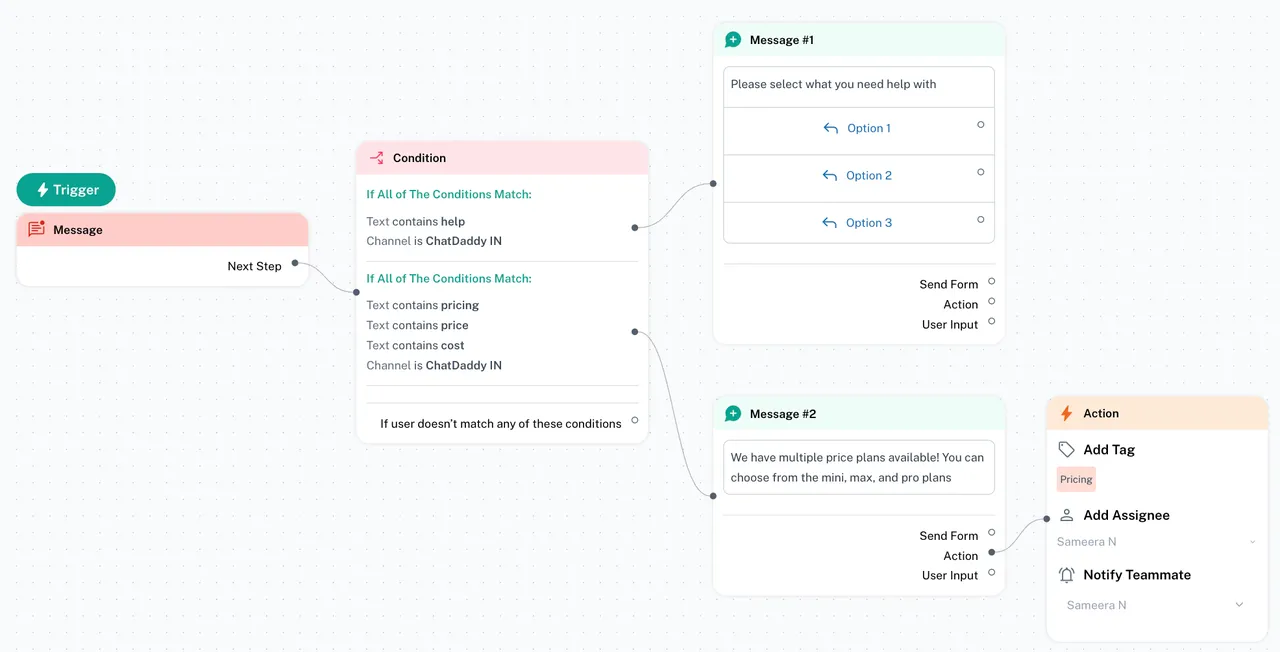
Incoming message trigger
The Incoming Message trigger allows you to automatically respond to customer messages based on specific keywords or phrases. This can help you deliver faster support and create a m…
💡 Note: The incoming message trigger is activated whenever there is a new message received.
💬 How to Use the “Incoming Message” Trigger to Send Automated Replies
The Incoming Message trigger allows you to automatically respond to customer messages based on specific keywords or phrases. This can help you deliver faster support and create a more responsive chat experience.
🔧 How to Set It Up
Follow these steps to create an automated reply using the Incoming Message trigger:
Step 1: Add the "Incoming Message" Trigger
-
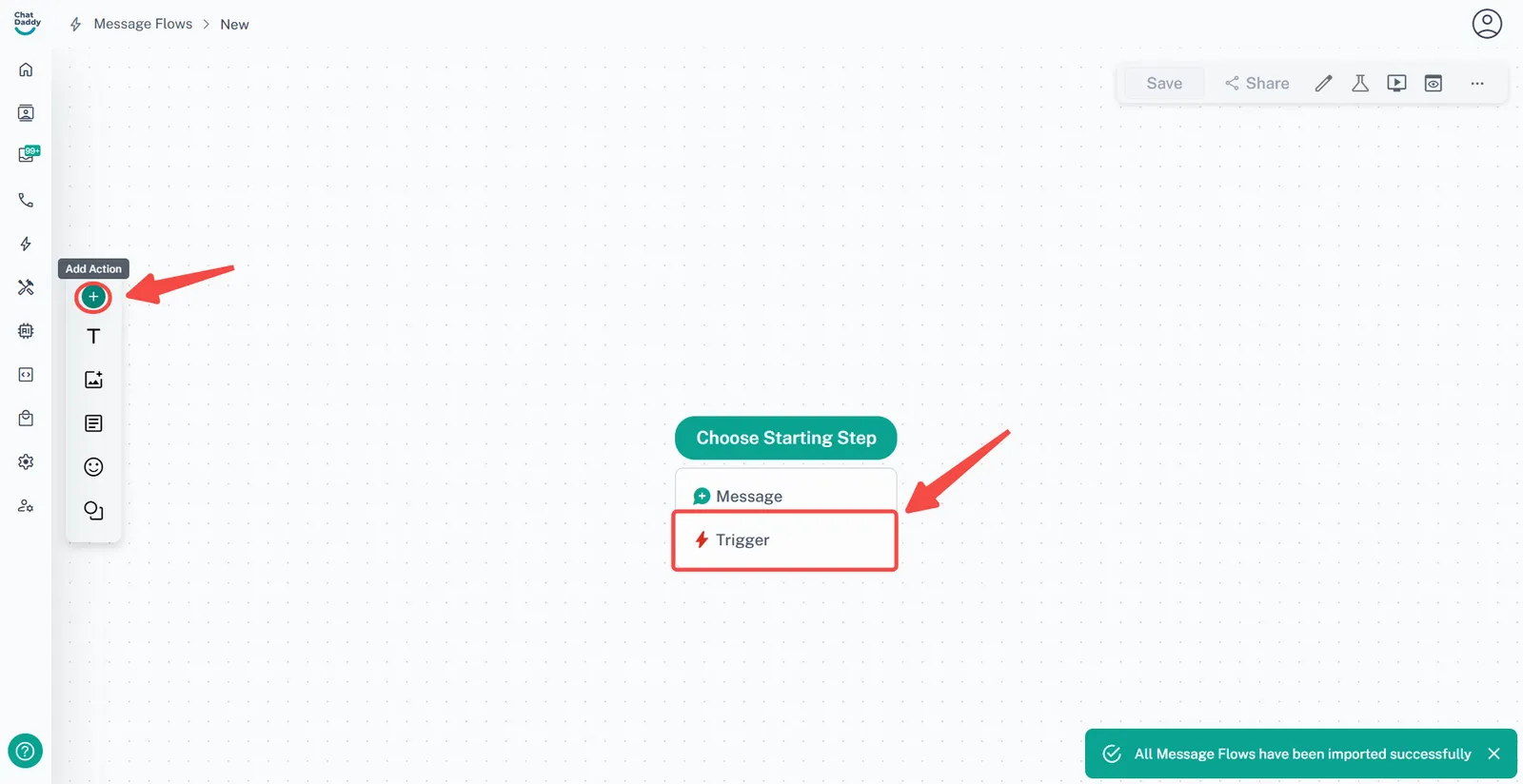
Go to your Message Flow.
-
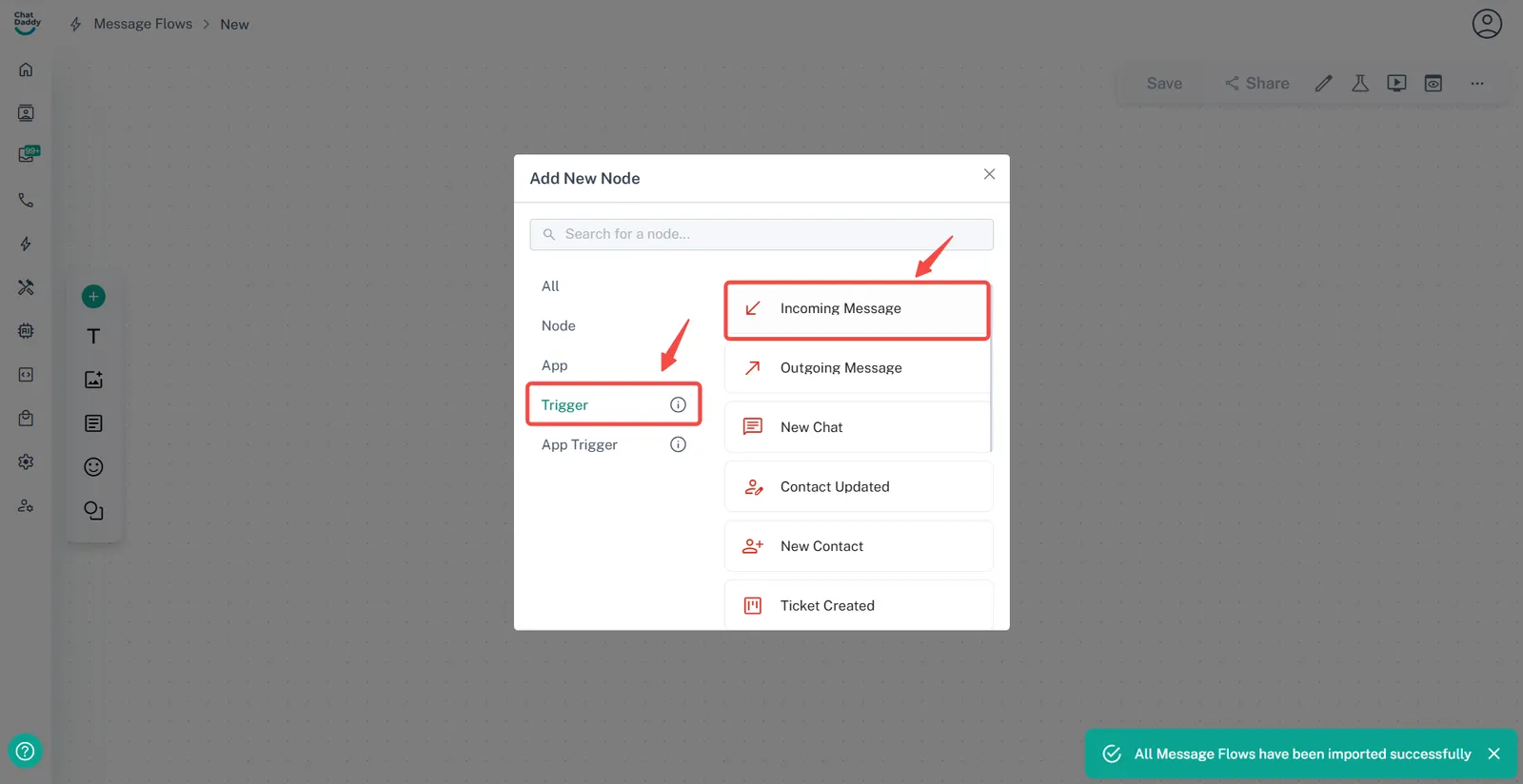
Click + Add Node and choose Trigger.
-
Select Incoming Message as the trigger type.
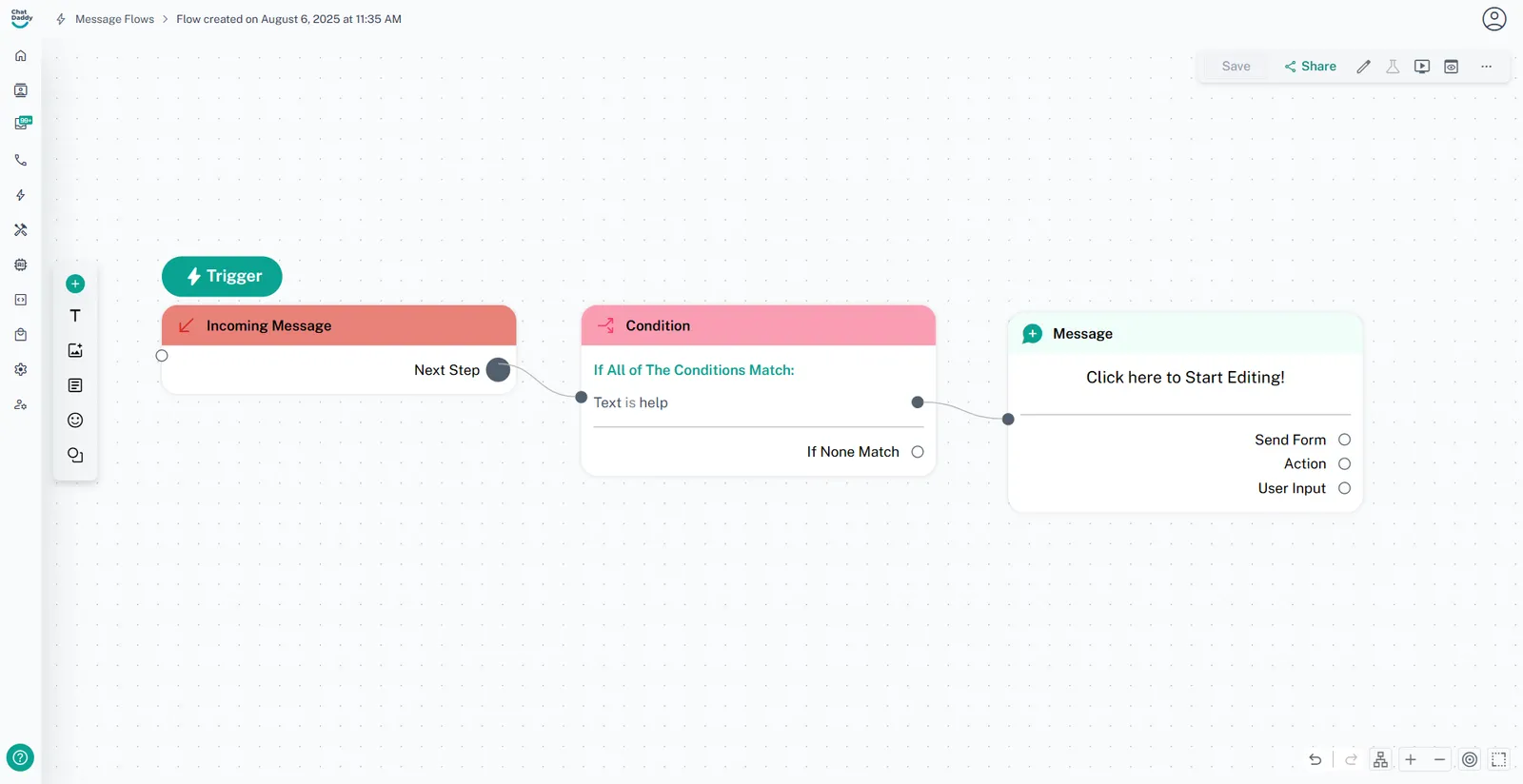
Step 2: Set Your Condition
-
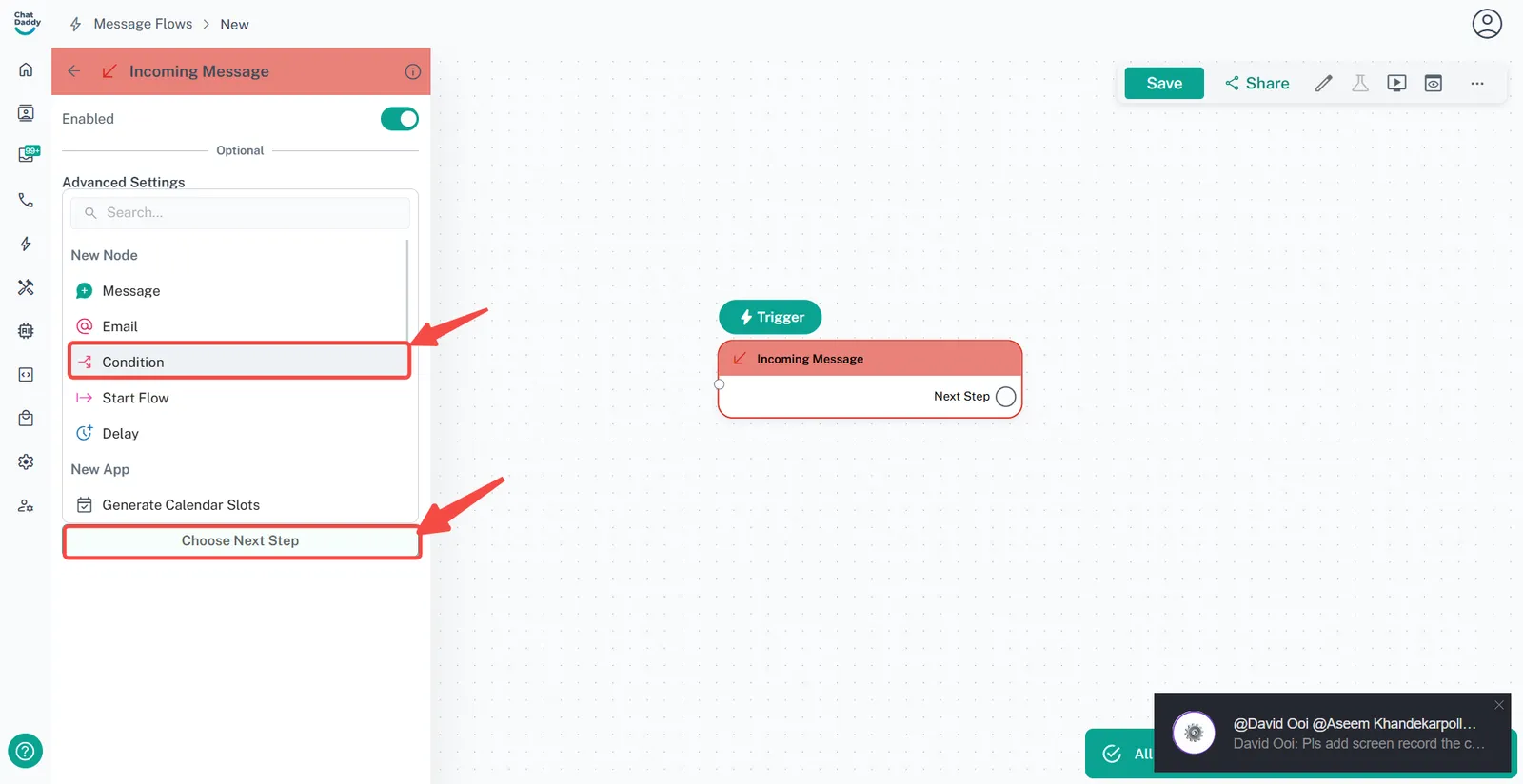
Under Incoming Message, click “Choose Next Step” + Add Condition.
-
Choose Text Contains or similar condition type.
-
Enter the keyword(s) you want to listen for (e.g.,
help,pricing,support).
💡 You can set multiple keywords if needed. Example: help, assist, problem.
Step 3: Define Your Response
-
After setting your condition, connect the trigger to a message or flow.
-
Create your reply message (e.g., “Hi there! How can we assist you today?”).
-
Optionally, route the user to a predefined flow or chatbot branch.