
Instant Q&A and Information Delivery During Live Streams with Comment Trigger
This guide focuses on using ChatDaddy to automate instant Q&A and information delivery during your live streams, providing real-time answers and resources to your audience. - Goal:…
Intro
This guide focuses on using ChatDaddy to automate instant Q&A and information delivery during your live streams, providing real-time answers and resources to your audience.
Use Case: Instant Q&A and Information Delivery
-
Goal: Quickly answer common questions and provide resources during a live stream.
-
Benefit: Saves time, provides instant information, and enhances viewer experience.
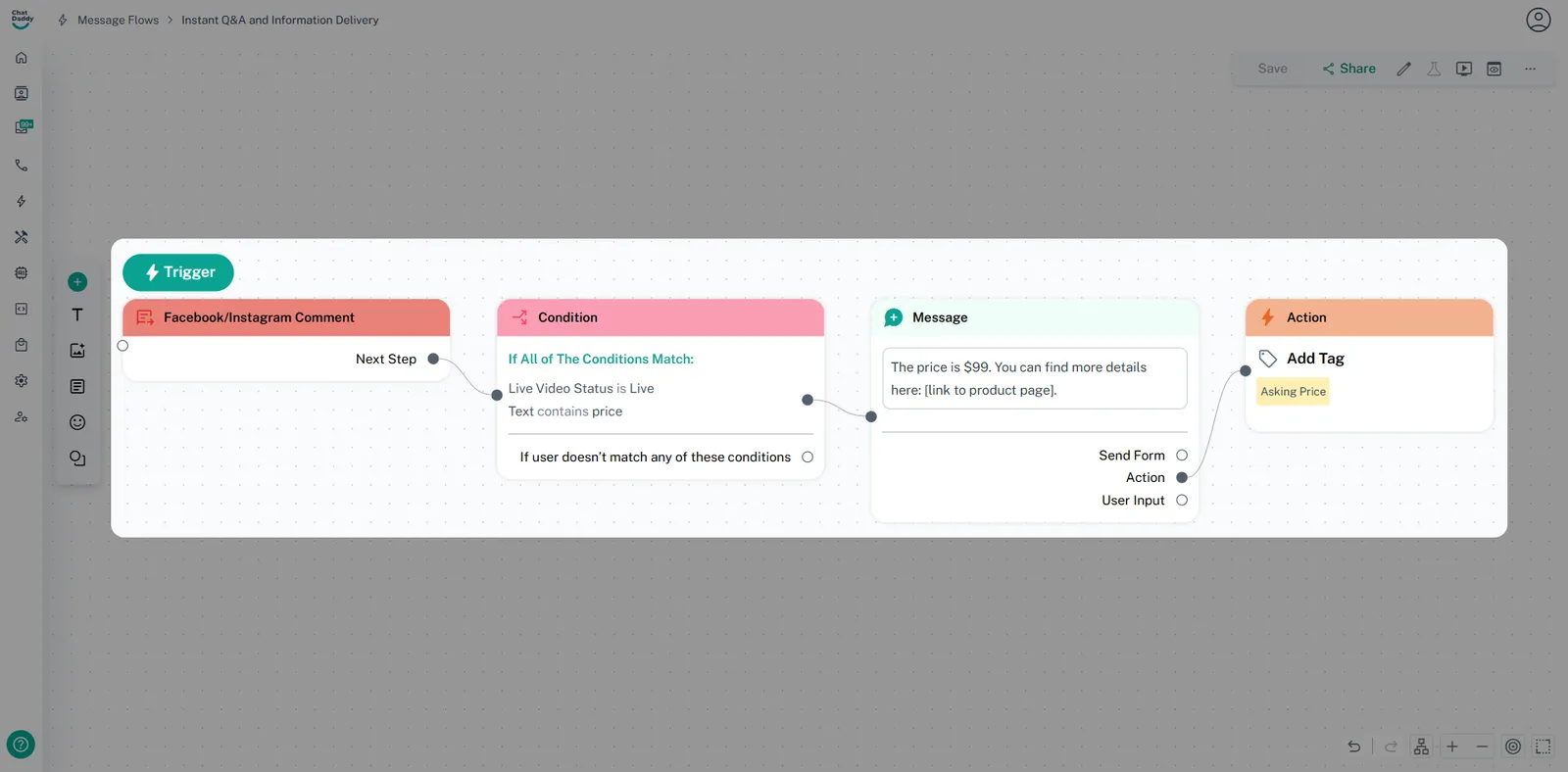
Steps to Implement:
1. Identify Common Questions and Information:
-
Anticipate common questions viewers might ask during your live stream (e.g., product features, pricing, where to find resources).
-
Prepare concise answers and relevant links or resources.
2. Create Keyword Triggers in ChatDaddy:
-
Trigger:
-
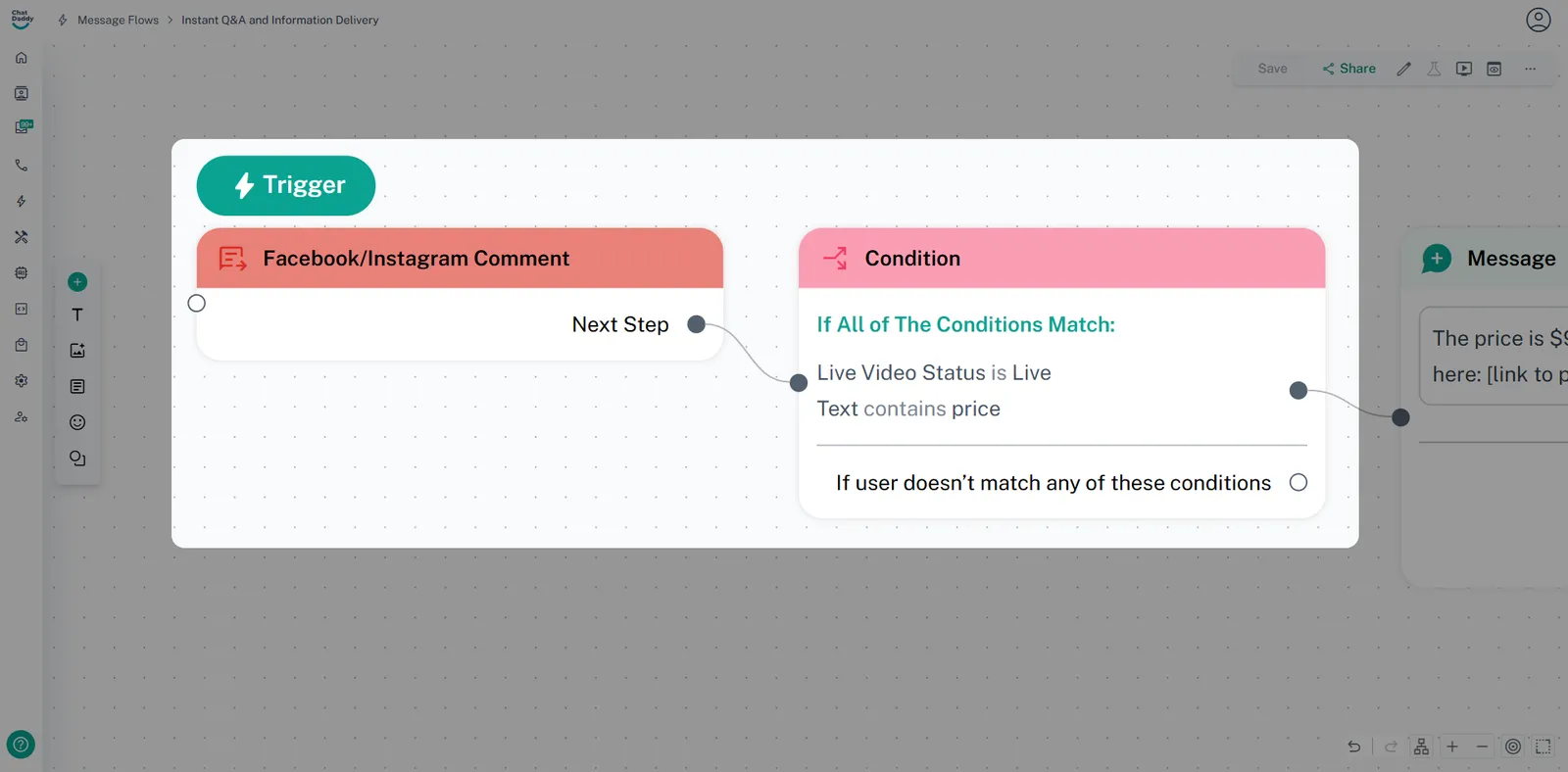
Create a new "Facebook/Instagram Comment" trigger.
-
Set the condition: "Comment Text" contains a relevant keyword (e.g., "price," "feature," "link").
-
Set the condition: "Live Video Status" is "Live".
-
-
Action:
-
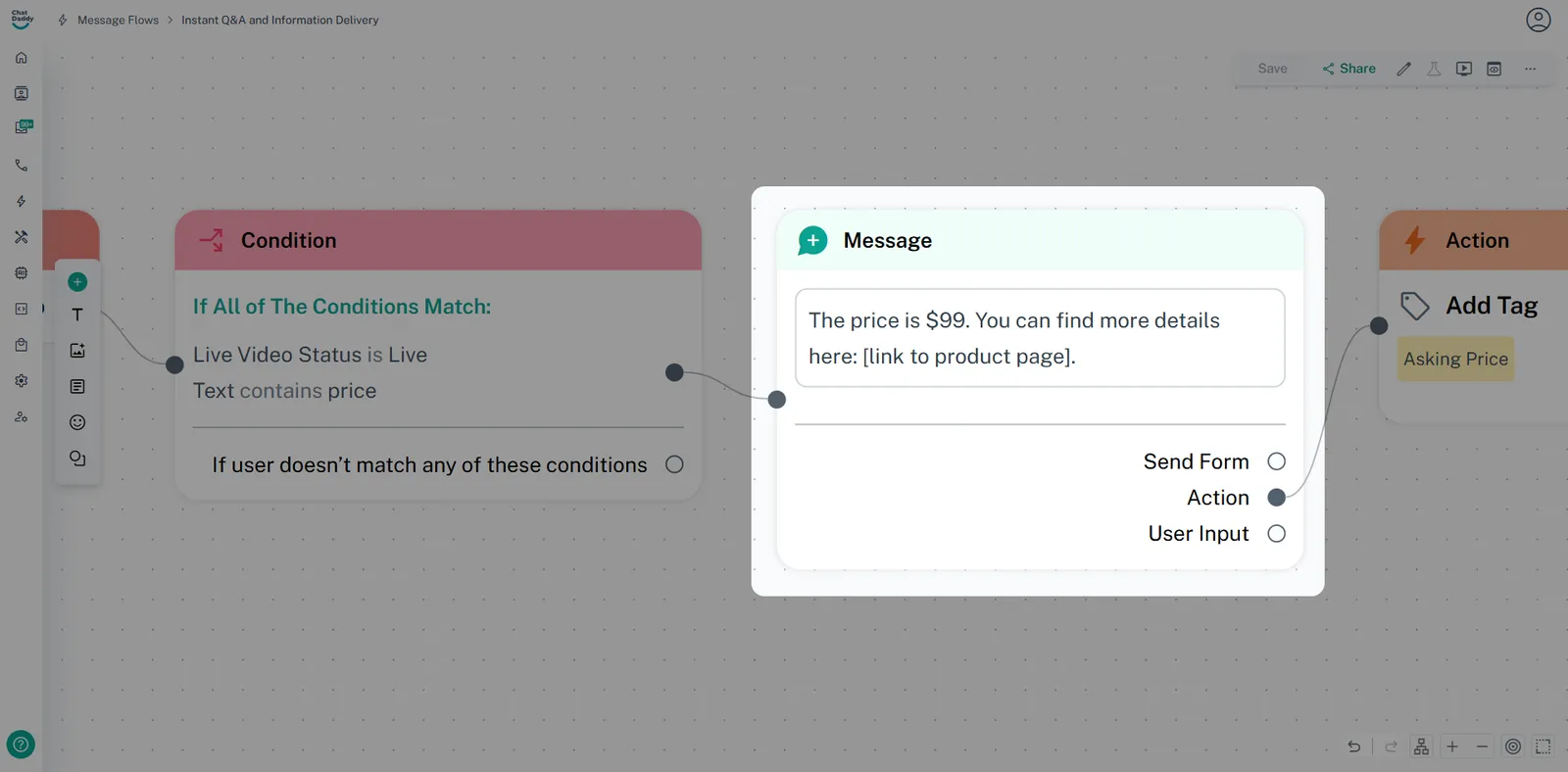
Add a "Send Message" action.
-
Craft a private message (DM) containing the answer or resource link.
-
Example: "The price is $XX. You can find more details here: [link to product page]."
-
-
Repeat this step for each common question or information point.
-
Optional Action:
-
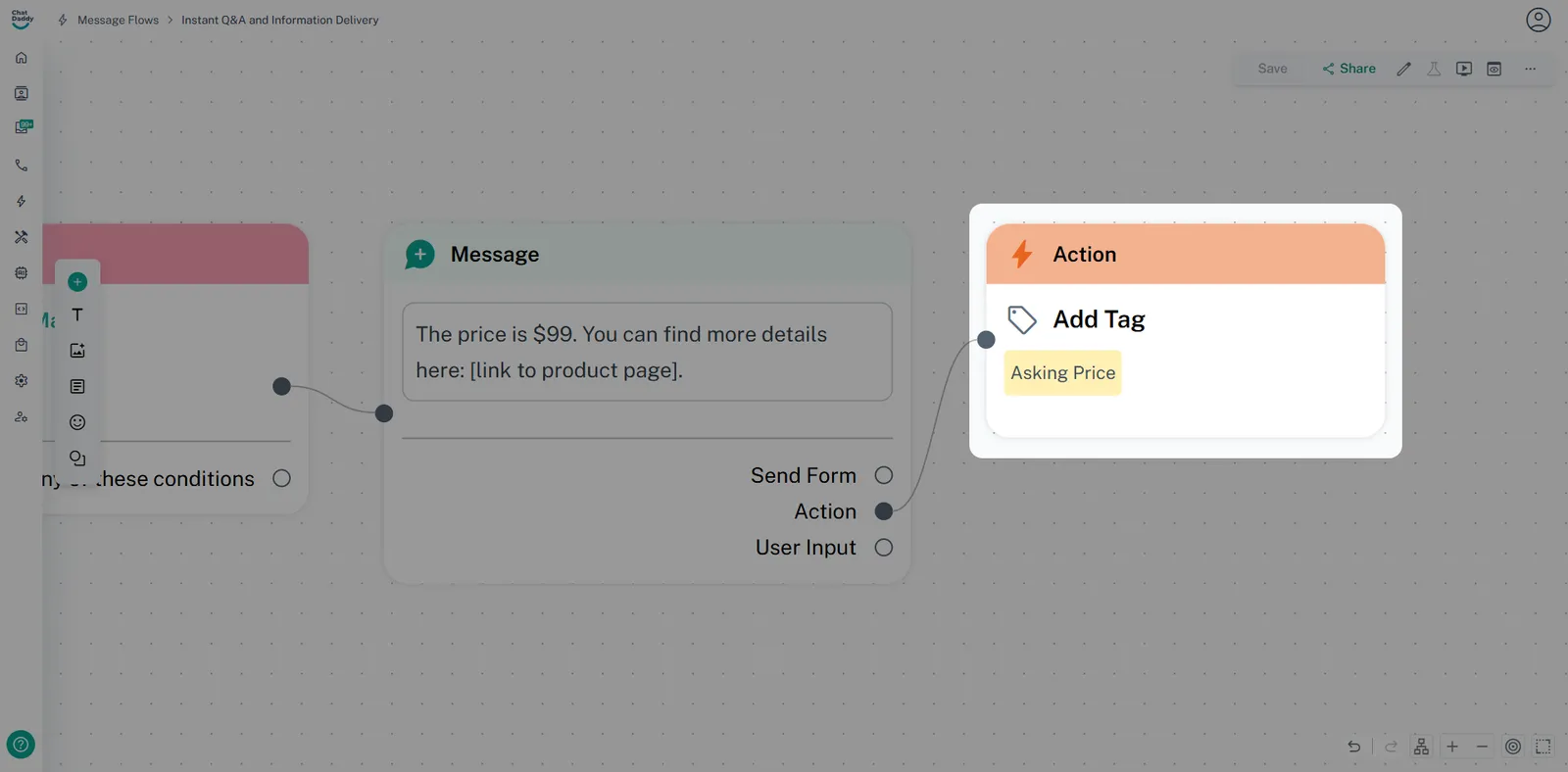
Add "Add Tag" action.
-
Tag the user with something like "Asking Price" to track them.
-
3. Announce the Q&A Automation:
-
Inform viewers that they can ask questions using specific keywords.
-
Clearly state the keywords and the type of information they will receive.
-
Example: "If you have questions about pricing, comment 'price,' and I'll send you the details."
4. Monitor and Engage:
-
Monitor the live chat for questions and ensure the automated replies are being sent correctly.
-
Address any questions that fall outside the automated responses manually.
5. Refine and Expand:
-
After the live stream, review the questions asked and the effectiveness of your automations.
-
Add new keyword triggers and responses to cover more questions in future live streams.
Key Considerations:
-
Accuracy: Ensure the automated responses are accurate and up-to-date.
-
Conciseness: Keep answers brief and to the point.
-
Relevance: Provide information that is relevant to the live stream's topic.
-
User-Friendliness: Use clear and simple language.
-
Testing: Thoroughly test your automations before going live.